The Ultimate Guide to Controlling Your TV with IPTV and Alexa
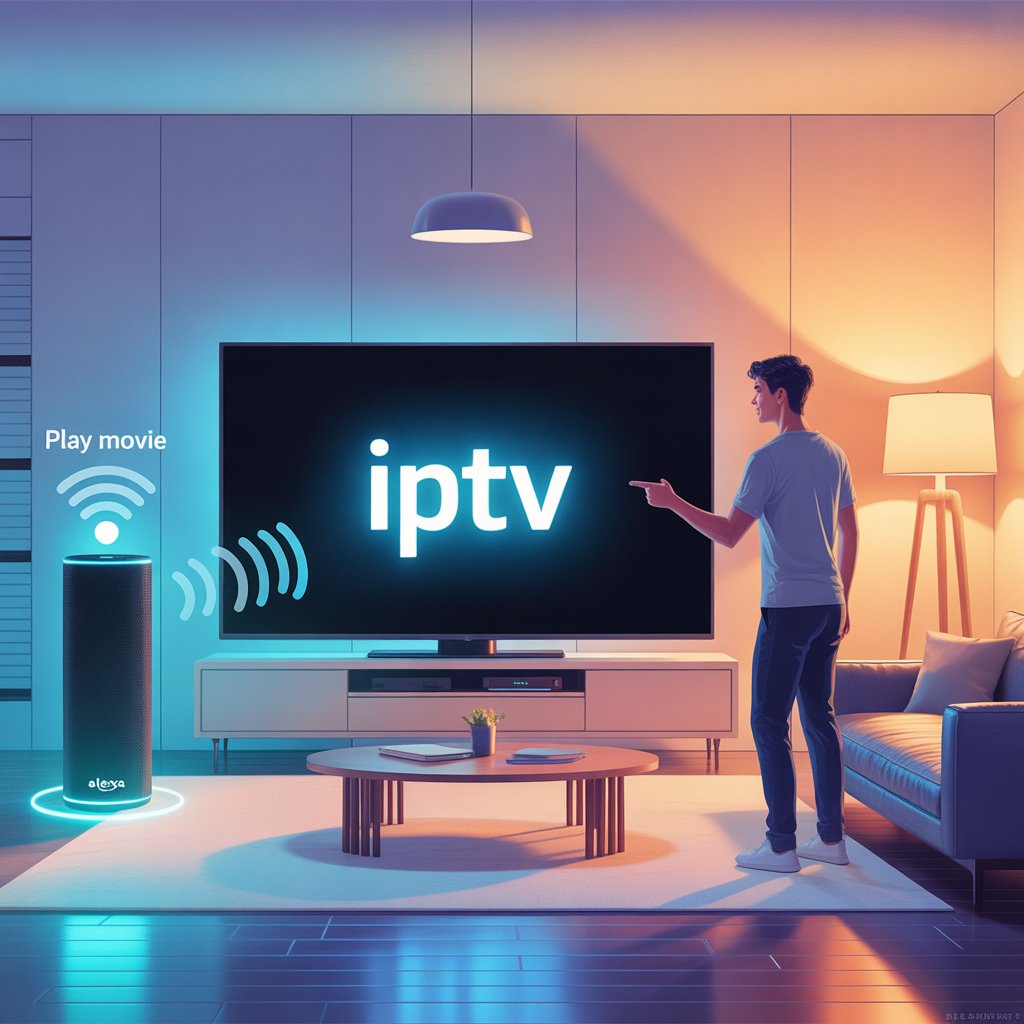
Let’s be honest, we’ve all been there—settled on the couch, snacks in hand, ready for a movie night, only to realize the remote has vanished into another dimension. What if you could just tell your TV what to do? That’s not science fiction anymore; it’s the reality of using **IPTV with Alexa**. By pairing the power of voice control with the endless content of IPTV, you can create a truly futuristic and hands-free entertainment experience.
IPTV (Internet Protocol Television) already gives you access to thousands of channels, but when you add Amazon’s Alexa into the mix, you take convenience to a whole new level. This guide is your friendly manual to making that magic happen. We’ll explore how using **IPTV with Alexa** works, what devices you’ll need, and walk you through a simple setup process.
We’ll cover everything from basic voice commands like changing the channel to creating advanced smart home routines that dim the lights for the perfect movie atmosphere. For anyone looking to make their streaming setup smarter and more accessible, this guide to **IPTV with Alexa** is for you.
We’ll also tackle some common questions and share some tips to make sure your voice-controlled setup works flawlessly. Ready to stop hunting for the remote and start talking to your TV? Let’s get started.
Why You’ll Love Using IPTV with Alexa
So, what’s the big deal about using your voice to control your TV? Combining **IPTV with Alexa** is about more than just a cool party trick; it genuinely makes your life easier and your entertainment more accessible [64].
- True Hands-Free Control: Picture this: you’re cooking in the kitchen and want to switch from a news channel to a cooking show. Instead of stopping, washing your hands, and finding the remote, you can just say, “Alexa, switch to the Food Network.” It’s that simple.
- A Game-Changer for Accessibility: For individuals with mobility challenges or visual impairments, voice control isn’t just a convenience—it’s an essential tool. Using **IPTV with Alexa** can empower users to navigate their entertainment options independently.
- Faster Than a Remote: Let’s face it, scrolling through thousands of channels to find what you want can be tedious. With voice commands, you can jump directly to a specific channel, search for a movie by name, or ask to see all the action movies available. It’s incredibly fast.
- Smart Home Integration: This is where it gets really cool. You can create “Routines” in the Alexa app. For example, you could have a “Movie Night” routine where saying, “Alexa, start movie night,” not only opens your IPTV app but also dims your smart lights and adjusts your smart thermostat to the perfect cozy temperature.
Using **IPTV with Alexa** is about creating a smarter, more connected home where your entertainment seamlessly fits into your daily life.
How Does IPTV with Alexa Actually Work?
Getting your **IPTV with Alexa** setup running is a lot like putting together a puzzle—you just need the right pieces to fit together. It’s not as complicated as it sounds, and you likely already have some of the pieces. Here’s the breakdown of what you need and how they talk to each other.
Step 1: Get the Right Hardware
First, you need a device that can both run an IPTV app and listen for Alexa commands. The most popular and seamless option for this is an **Amazon Fire TV Stick** [63]. The Alexa Voice Remote that comes with it is designed for this exact purpose. Other options include smart TVs with Alexa built-in (like some models from Sony or Toshiba) or an Android TV box that you’ve linked to an Amazon Echo device.
Step 2: Choose a Compatible IPTV App
Not all IPTV player apps are created equal when it comes to voice control. You need an app that is designed to work with the Alexa ecosystem. Some of the best and most widely used apps like **IPTV Smarters Pro** and **Smart IPTV** have been developed with this kind of integration in mind [64]. I’ll share a more detailed list of recommended apps later on.
Step 3: Link Everything in the Alexa App
This is where you make the connection. Using the Alexa app on your smartphone, you’ll need to make sure your Fire TV Stick (or other device) is recognized and linked to your Amazon account [66]. The app will usually walk you through this process during the initial device setup. This step ensures that when you speak to your Echo Dot in the kitchen, it knows which TV you want it to control.
Step 4: Start Using Voice Commands
Once everything is connected, you can start talking! The commands are usually pretty intuitive. You can say things like:
- “Alexa, open IPTV Smarters.”
- “Alexa, switch to CNN.”
- “Alexa, pause.”
- “Alexa, search for comedies.”
The system works by having Alexa on your remote or Echo device interpret your command and then instruct the operating system on your Fire TV Stick to perform the action within the compatible IPTV app.
The Best IPTV Apps for Alexa Integration
To get the most out of your **IPTV with Alexa** setup, you need an app that plays nicely with voice commands. Here are some of the best choices available in 2025:
- IPTV Smarters Pro: This is the go-to app for many IPTV users and for good reason. It works very smoothly with the Alexa Voice Remote on a Fire TV Stick, allowing you to launch the app, search for content, and sometimes even switch channels with just your voice [64].
- Smart IPTV (SIPTV): A long-standing and reliable app, especially for smart TVs. If your TV has Alexa built-in, this app is often one of the best for simple and direct voice commands like changing channels.
- TiviMate: While it doesn’t have a dedicated Alexa “skill,” TiviMate’s integration with the Android TV operating system is so good that it works flawlessly with the voice search function on remotes like the one for the NVIDIA Shield or Fire TV. You can search for shows and channels and it will pull them up in the app [67].
- Flix IPTV: Another great option for the Fire TV Stick, Flix IPTV has a clean interface and responds well to the basic voice commands from the Alexa remote, making for a smooth user experience.
My advice? If you’re using a Fire TV Stick, start with IPTV Smarters Pro. It’s free and offers the most direct integration for **IPTV with Alexa**. For more app ideas, check out our guide on The Best IPTV Apps of the Year.
Common Questions about IPTV with Alexa
Here are some quick answers to the questions people often ask about setting up **IPTV with Alexa**.
Can I change specific channels by name with Alexa?
Yes, but it depends on the app and your IPTV provider’s EPG (Electronic Program Guide) data. With a well-configured app like IPTV Smarters Pro and a good provider, you can often say things like, “Alexa, switch to ESPN,” and it will work. However, this level of integration is not always perfect.
Do I need an Amazon Echo device to use IPTV with Alexa?
No, you don’t necessarily need a separate Echo speaker. If you have an Amazon Fire TV Stick, the Alexa Voice Remote has a built-in microphone. You just press and hold the button to issue commands. An Echo device simply allows for hands-free control without needing the remote at all.
Can I use IPTV with Alexa on my Echo Show?
Yes, you can use **IPTV with Alexa** on an Echo Show. The Echo Show 15, for example, runs on Fire TV software and can install IPTV apps. You can use its built-in browser to access web-based players like the IPTV Smarters Web Player, or find compatible apps in its app store [59].
Why isn’t Alexa understanding my commands for IPTV?
This can happen for a few reasons. First, make sure you are speaking clearly. Second, ensure your IPTV app is compatible and properly linked in the Alexa app. Lastly, try phrasing your command differently. Instead of “Play the game,” try “Open ESPN.” Sometimes being more specific helps Alexa understand. For troubleshooting, Amazon has an official Alexa support page that can be very helpful.
Pro Tips for a Perfect Voice-Controlled Setup
Ready to fine-tune your **IPTV with Alexa** setup? Here are a few tips to make it work even better.
- Name Your Devices Clearly: In the Alexa app, you can name your devices. If you have multiple Fire TV Sticks, name them “Living Room TV” or “Bedroom TV.” This way, you can tell your Echo speaker exactly which TV you want to control.
- Use Alexa Routines for Automation: This is the secret to a truly smart home. Go into the Routines section of your Alexa app and get creative. You can set up a “Good Morning” routine that turns on your lights, tells you the weather, and opens your IPTV app to your favorite news channel, all with a single command.
- Make Sure Your EPG is Up-to-Date: The quality of your provider’s Electronic Program Guide is crucial for voice search. A good EPG means Alexa can accurately find shows and channels when you ask for them. If your EPG is messy, voice commands will struggle. Our guide on choosing a reputable provider can help you find one with a good EPG.
- Use an Ethernet Adapter: Even with voice control, a stable internet connection is key. An Ethernet adapter for your Fire TV Stick can prevent buffering and make your whole experience, including voice responses, much faster and more reliable.
Conclusion: The Future of TV is Hands-Free
The days of frantically searching for a lost remote are numbered. By combining the vast content library of IPTV with the smart convenience of Amazon’s voice assistant, you can create a truly modern and effortless entertainment system. Setting up **IPTV with Alexa** is no longer a complex task for tech enthusiasts; it’s an accessible upgrade for anyone looking to make their life a little easier.
From changing channels while your hands are full to creating immersive smart home routines, the possibilities are exciting. With a compatible device like a Fire TV Stick and the right IPTV app, you can build a setup that feels like it’s straight out of the future.
So go ahead, connect your devices and start talking to your TV. Welcome to the smarter way to stream. Your perfect setup for **IPTV with Alexa** is just a few commands away.
Have you tried using voice commands with your IPTV setup? What are your favorite routines or commands? Share your tips in the comments below!
Return to top of page